


A Google app called Switch To Android is trying to ease the jump from iOS.
You are switching from an iPhone to an Android phone and want to transfer important data such as contacts, photos, videos, email accounts and calendar events. One way to do this is through a Google app for iOS known as Switch To Android.
SEE: iCloud vs. OneDrive: Which is Best for Mac, iPad, and iPhone Users? (free pdf) (TechRepublic)
By running Switch To Android on your iPhone, you can choose the content you want to migrate. The app also walks you through the steps of how to disable iMessage on your iPhone so that new text messages are sent to your Android device.
What you need to switch from iOS to Android
There is one important requirement for using Switch To Android: your Android phone must be running Android 12 or later. This should not be a problem if you are working with a new device.
Also, if you’re moving to a Samsung phone specifically, keep in mind that Samsung offers its own switching tool called Smart Switch.
How to switch from an Apple to an Android phone
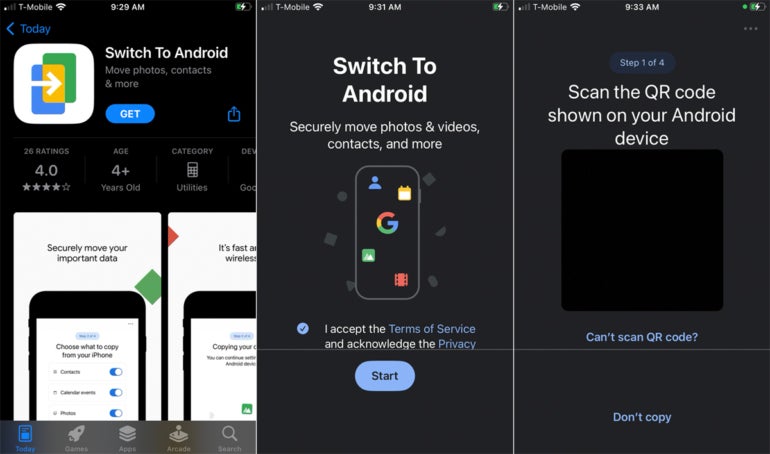
Download and install it first Switch to Android app on your iPhone. The app won’t appear in searches on Apple’s App Store, so make sure to use this link to view the page directly.
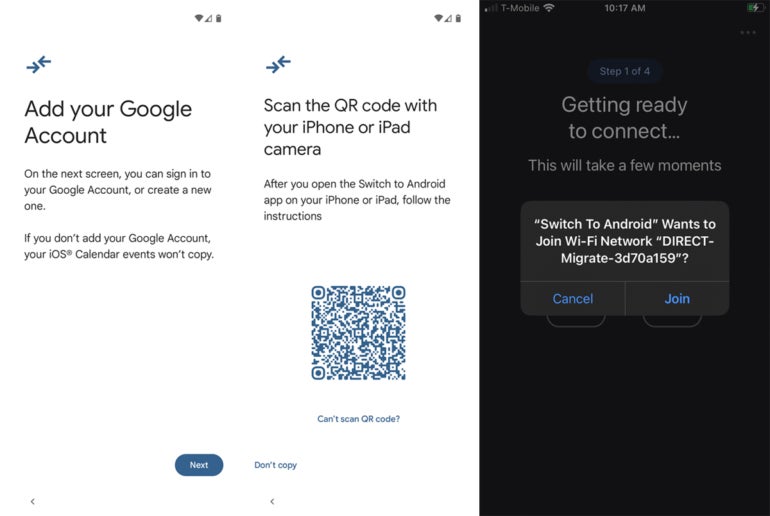
Then open the app, agree to the terms and click Start. Allow the app to access your phone’s camera. You will then be prompted to scan a QR code on your Android device (Image A).
Image A
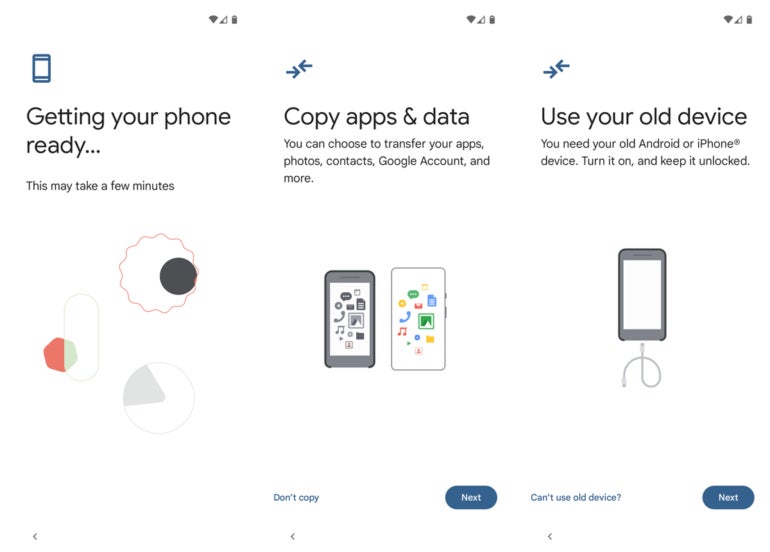
Start the installation process on your new Android phone. At some point you will see a screen asking if you want to copy apps and data. Tap Next.
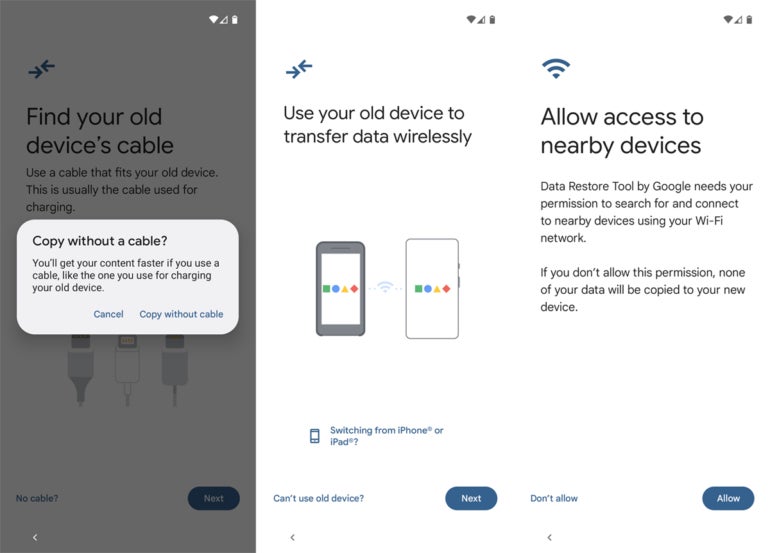
On the next screen you will be asked if you want to use your old device: an Android phone or an iPhone. Tap Next (Figure B).
Figure B
You now have the option to connect the two phones together via a physical cable. That’s definitely faster than wireless; use a cable if possible.
If you don’t have a cable handy, tap the No Cable link and confirm that you want to copy without a cable. The next screen confirms that you want to transfer the date wirelessly. Tap the option that reads “Switch from iPhone or iPad.”
The next screen asks you to allow access to nearby devices. Tap Allow (Figure C).
Figure C
You will then be prompted to add your Google account to copy calendar events. Tap Next.
Sign in with your Google username and password and agree to the terms. Then insert your old iPhone to scan the QR code displayed on the Android phone.
On your iPhone, tap Join when the app asks to join the direct Wi-Fi network (Figure D).
Figure D
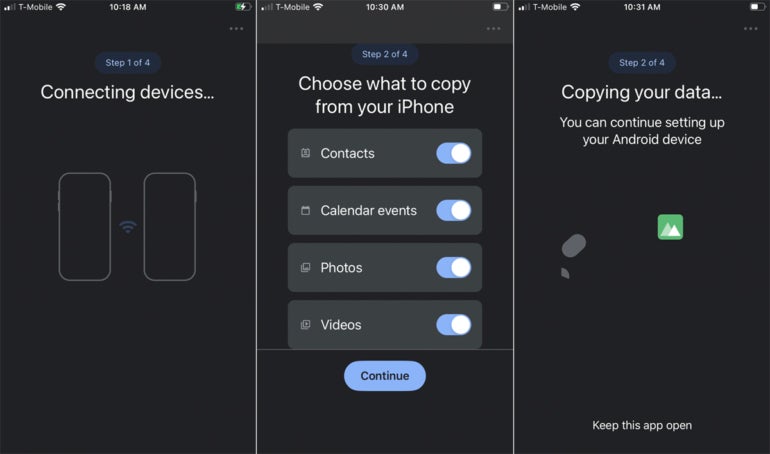
After the devices connect, the next screen asks what content you want to copy from your iPhone: contacts, calendar events, photos and/or videos. Turn off the toggle for content you don’t want to copy; otherwise, all items will be transferred.
Tap Continue and give the app the necessary permissions to access the content. The next screen indicates that the data is being copied (Figure E).
Figure E
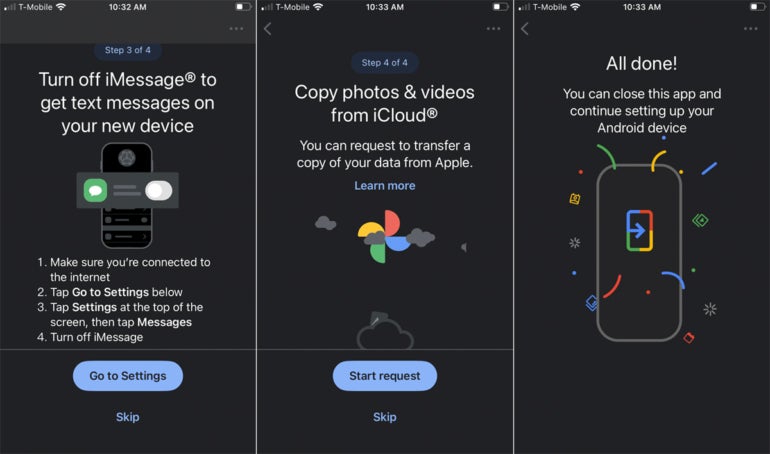
You will then be prompted to turn off iMessage on your phone if you want to send new text messages to your Android phone. To do this, follow the steps in Settings.
Then you can copy your photos and videos from iCloud, assuming you’re using the service. Then tap the Start request button.
The app will then indicate that you are all set. Go ahead and complete the installation on your Android phone (Figure F).
Figure F
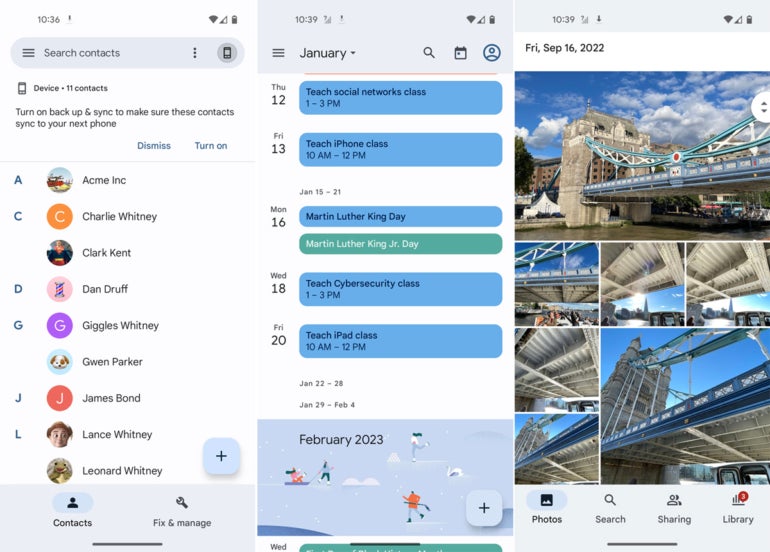
After the installation is complete, check the contacts, calendar events, and photos on your Android phone to make sure that the necessary data has been transferred from your iPhone (Figure G).
Figure G
Read more useful tutorials for the iPhone and iPad here: How to edit photos and how to use the latest Siri features.
Source link
